Ride Assist
Ride Assist settings handle the mechanical parts of managing a ride recording, pausing, resuming and starting, so you do not have to think about them while cycling.
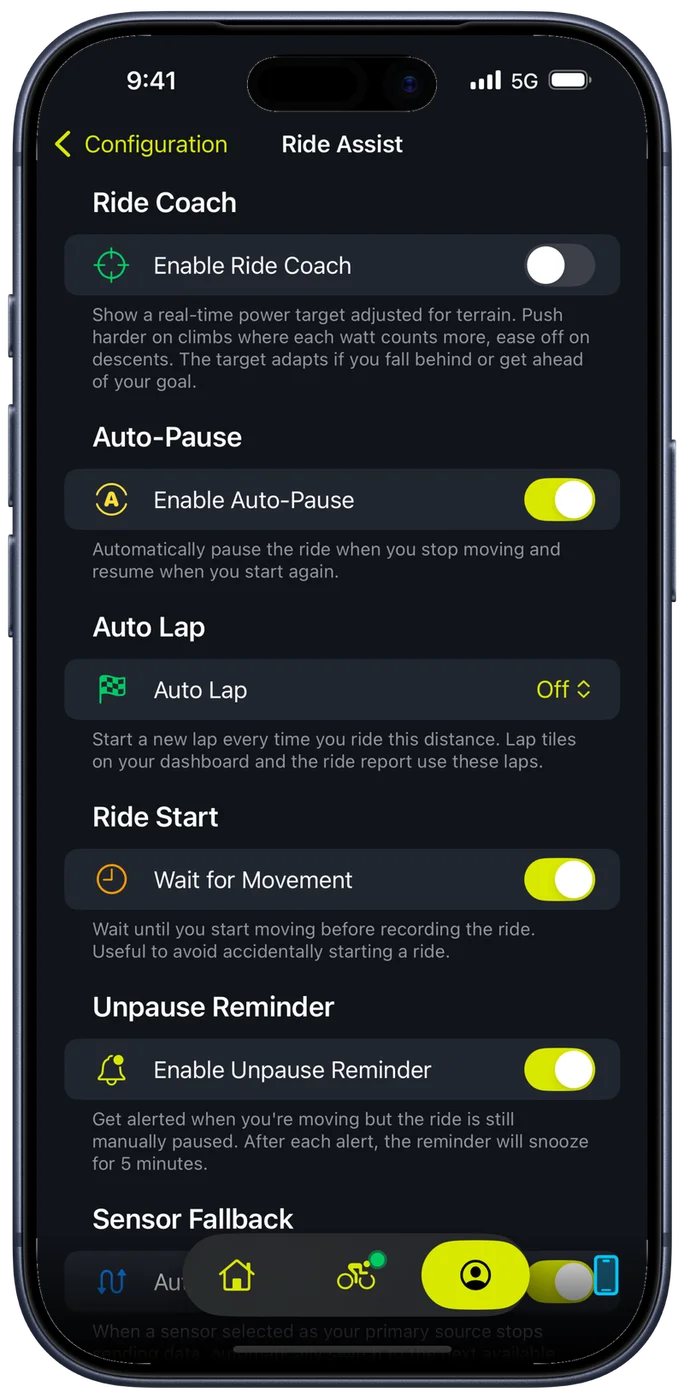
Auto-Pause
Auto-Pause detects when you stop moving and automatically pauses the ride recording. When you start moving again, it resumes. This keeps your ride data clean by excluding time spent at traffic lights, stop signs, or quick breaks.
Without Auto-Pause, stopped time inflates your elapsed time and drags down your average speed. For riders who care about accurate moving averages, this is the most important setting on this screen.
Wait for Movement
When enabled, Wait for Movement delays the start of your ride recording until you reach a minimum speed threshold. This solves a common annoyance: you tap "Start Ride" while still clipping in, adjusting your gloves, or waiting for a gap in traffic, and the first 30 seconds of your ride show zero speed.
With Wait for Movement on, the timer and all metrics begin only when you start rolling. Your ride data starts clean without idle time at the beginning.
Unpause Reminder
If you manually pause a ride and then start riding again without resuming, the Unpause Reminder alerts you after a configurable delay. This catches the situation where you pause at a cafe stop, get back on the bike, and ride for ten minutes before realizing nothing was being recorded.
The reminder triggers only after manual pauses, not auto-pauses. If you use Auto-Pause, that system handles resuming on its own. The Unpause Reminder is specifically for times when you deliberately paused and then forgot to tap resume.
You can adjust the delay to control how long the app waits before alerting you. A shorter delay catches the mistake faster. A longer delay avoids false alerts if you tend to coast briefly after a stop before fully committing to riding again.
Auto Lap
Auto Lap starts a new lap every time you ride a set distance, so you get even splits without touching the phone. It is off until you choose a distance, and it is free.
The distances follow whichever unit you ride in. In kilometres you get 1, 2, 5, 10 and 20 km. In miles you get 1, 2, 5 and 10 mi. Change your unit and the list changes with it, so there is never an odd number to read mid-ride.
The laps it creates are ordinary laps. They appear in your ride report with their own distance, time, power and heart rate, and every lap metric reads from them: lap power, lap time, lap distance, and the whole Last Lap family. Put any of those on a page and they fill in as each lap closes.
It pairs with the Last Lap Auto Page, which comes up by itself for the first twenty seconds of a new lap and shows you the one you just finished. With Auto Lap set to a kilometre, that is a readout of your last kilometre, every kilometre, with nothing to press.
You can still mark laps by hand with the lap button or a voice command while Auto Lap is on. Those count as manual laps, which is a distinction the New Manual Lap page condition can act on if you want a page that only appears when you press the button yourself.
Sensor Fallback
Auto-Switch Source covers you when a sensor drops out mid-ride. If the sensor you have chosen as the primary source for speed, power or cadence stops sending data, Bike IQ moves to the next available source for that metric rather than leaving the number blank.
In practice that means a power meter going flat falls back to Bike IQ's estimate, and a wheel speed sensor dropping out falls back to GPS, without you noticing mid-effort. It is on by default. Turn it off if you would rather see a metric go blank than be fed by a different source, which is the stricter choice if you are comparing rides on the same equipment.
Live Activity
Live Activity displays your ride metrics on the iPhone Lock Screen and in the Dynamic Island while a ride is in progress. This gives you a quick glance at key stats (elapsed time, distance, and speed) without unlocking your phone or switching to the Bike IQ app.
Live Activity is useful when your phone is mounted on the handlebars but the screen has timed out, or when you are using another app mid-ride and want ride data visible at a glance. Disable it if you find the persistent notification distracting or if you always keep the Bike IQ app in the foreground.
Related Guides
- Recording a Ride: the ride screen, session controls, and what gets recorded
- Settings and Customization: all configurable preferences in Bike IQ
- Finishing a Ride: saving, discarding, and reviewing your completed ride