Finishing a Ride
When you end a ride, Bike IQ saves your data, generates a title, and gives you options to share it. Here is everything that happens between tapping End Ride and seeing your completed session in the History tab.
Save, Discard, or Resume
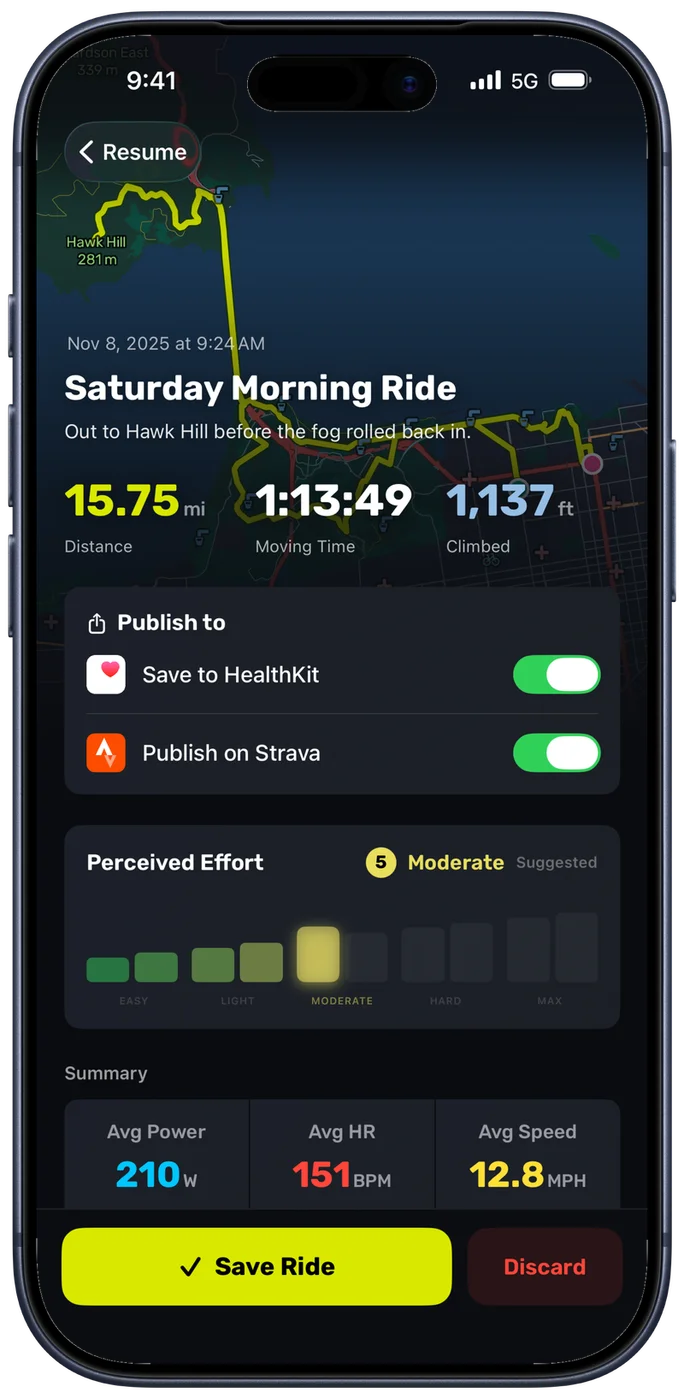
When you tap End Ride, Bike IQ presents a decision screen with three options:
- Save: Stores the ride permanently. It appears in your History tab with full metrics, map, and analysis available in the Ride Report.
- Discard: Permanently deletes all data from the session. This cannot be undone.
- Resume: If you ended the ride by mistake, resume recording. The timer picks up exactly where it left off with no data lost.
If you are unsure, save first. You can always delete a saved ride later from the History tab.
Ride Title and Description
Every ride is named for you from the day and the time you set out, so you get "Wednesday Afternoon Ride" or "Saturday Early Morning Ride" without typing anything. There are six bands through the day, from Early Morning to Late Night, and they are translated along with the rest of the app, so a ride recorded in French is named in French. You can edit the title before you save, or at any time afterwards from the Ride Report.
You can also add a description to capture details that the data does not, how the ride felt, who you rode with, weather conditions, or anything worth remembering. Descriptions are included when you publish to Strava.
Publishing to Strava
After saving, you can publish the ride to your Strava account with one tap. The upload includes your GPS track, power, heart rate, cadence, speed, elevation, and any laps you marked during the ride.
If you have not connected Strava yet, the post-ride screen offers a quick way to authorize, tap the Strava button, sign in through Strava's OAuth page, and you will be redirected back to Bike IQ with the connection ready to use. No need to go through Settings separately. For more details, see Strava & Integrations.
You can also publish rides to Strava later from the Ride Report or the History tab. There is no deadline, rides can be uploaded at any time.
Apple Health
When Apple Health integration is enabled, saved rides are automatically written to Apple Health as workout sessions. This includes distance, duration, calories, and heart rate data. Other apps that read from Apple Health, like fitness trackers, insurance programs, or health dashboards, will see your cycling activity.
To enable Apple Health sync, go to iPhone Settings → Health → Bike IQ and enable the data categories you want to share. See Strava & Integrations for the full setup guide.
Crash Recovery
Your ride data is safe even if the app closes unexpectedly. Bike IQ continuously writes all GPS and sensor data to disk during recording. If the app crashes, is force-quit, or the device restarts mid-ride, your data is already saved.
When you reopen Bike IQ it tells you your previous ride has not been finalized and brings it up on the same Ride Complete screen as a normal ending, with everything it recorded intact. Save it, or discard it, exactly as you would have.
Crashes are rare, and we fix reported issues as quickly as possible. The recovery system is designed so that even in the unlikely event of one, your effort is preserved.
Related Guides
- Ride Report: detailed post-ride analysis, power curves, HR zones, maps, laps, and export
- Strava & Integrations: connect Strava, export GPX/FIT/TCX, Apple Health sync
- Recording a Ride: start, pause, and control your ride session