Navigation & Routes
Plan routes before you ride, follow turn-by-turn directions on the road, and import courses from GPX files, Strava, or RideWithGPS. Navigation lives on the same screen as your ride metrics, so following a route never costs you the map or the numbers.
Navigation and route planning require Bike IQ Pro.
Free users can record rides, view the live map, and access all core metrics without a subscription. Route planning, turn-by-turn navigation, and route imports are Pro features.
Route Planner
The route planner lets you build and browse routes before you clip in. Open it from the main screen and you have several options:
- Saved routes: Browse your route library of previously ridden or imported routes. Select one to preview the course and elevation profile before starting.
- Waypoint builder: Center the map crosshair on your target location and tap Add Waypoint, or search for a place by name. Bike IQ calculates a cycling-friendly route between your waypoints automatically. See the Route Builder guide for the full workflow.
- Search: Type a destination (an address, a landmark, a town) and Bike IQ routes you there from your current location.
- Elevation preview: Every route shows an elevation profile before you start. See total climbing, major hills, and gradient distribution so there are no surprises on the road.
Turn-by-Turn Navigation
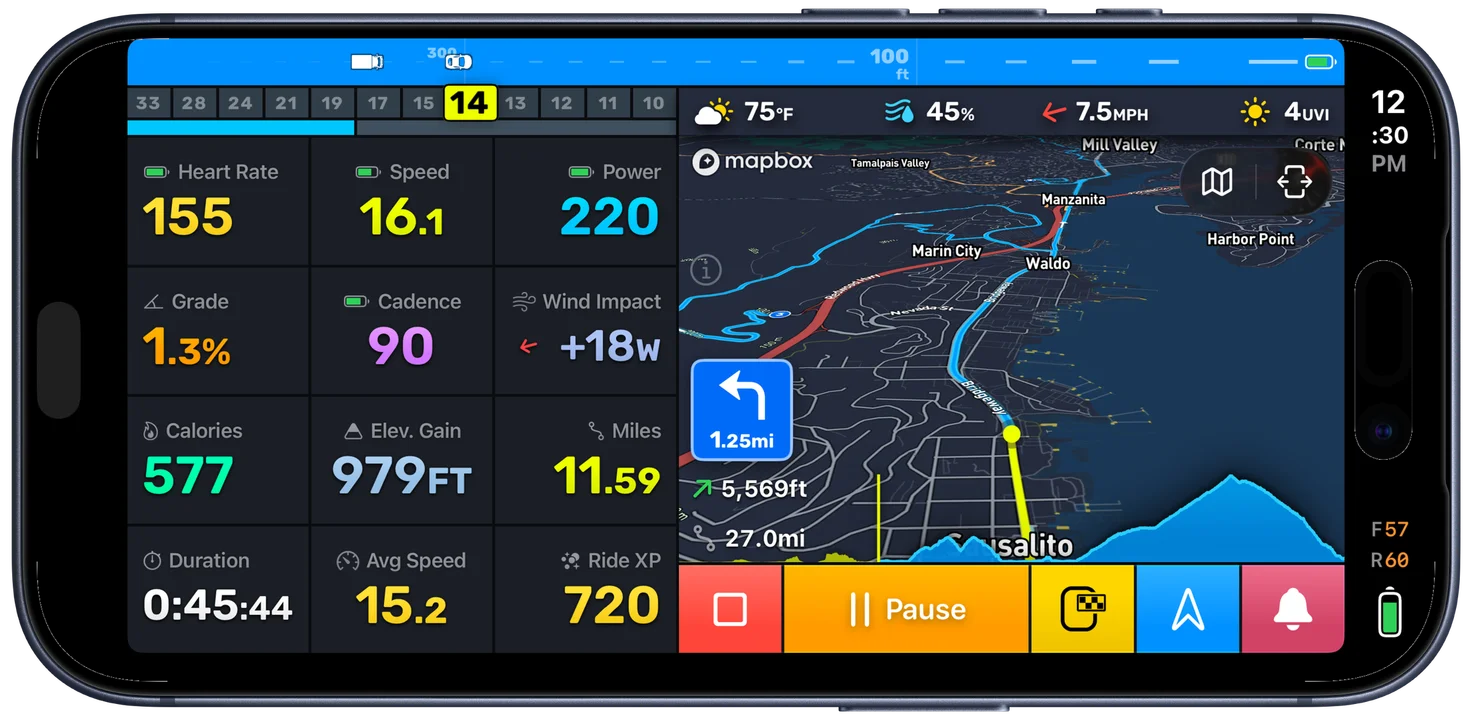
Once you start a route, Bike IQ provides real-time navigation that stays out of your way until you need it.
- Visual turn cards: The next turn appears on the map as a card showing the maneuver and how far away it is, so you can read it at a glance without taking a hand off the bars.
- Voice directions: Audible turn-by-turn guidance so you can keep your eyes on the road. Voice works alongside music or podcasts without interrupting playback.
- Route on the live map: Your planned route is drawn on the map in real time, with your position tracked along it. You always know where you are on the course.
- Metrics stay beside the route: Navigation overlays sit alongside speed, power, grade, heart rate and every other metric. There is no separate navigation page to switch to, and if you turn to another of your pages mid-route, the map and the turn banner come with you.
Importing Routes
Bring routes from other platforms and file formats directly into Bike IQ. Imported routes become part of your saved route library and work with full turn-by-turn navigation.
File Imports
GPX files are the universal route exchange format. Export a GPX from any cycling platform (Komoot, Garmin Connect, RideWithGPS, etc.) and follow it in Bike IQ with full turn-by-turn navigation.
To import, open a GPX file on your iPhone and select Bike IQ from the share sheet, or use the import option within the route planner.
Strava Routes
Connect your Strava account in Strava settings and the routes you have saved on Strava are listed inside Bike IQ, ready to import. No starring, exporting or file shuffling: your courses are simply there.
RideWithGPS
Connect your RideWithGPS account and your routes import directly into Bike IQ, the same way Strava routes do. See Importing Routes for the connection steps.
Route Display During Rides
Whether you are following navigation or just previewing a loaded route, the ride screen shows your progress in several ways:
- Route polyline: The full course is drawn on the map so you can see the road ahead and the path behind you.
- Progress indicator: A marker shows your current position on the route, making it easy to gauge how far along you are.
- Elevation profile: The route's elevation profile can be displayed during the ride, showing your current position relative to upcoming climbs and descents. Enable this in map display settings.
- The road ahead: Bike IQ continuously shows the elevation and grade of the road in front of you, and flags significant climbs with an overlay showing gradient, distance, and elevation gain. This works whether or not you are following a route, by anticipating the road you are most likely to take. See The Road Ahead for details.
Navigation and Metrics Together
When navigation is active, the turn instruction banner overlays the top of the ride screen while your speed, power, heart rate, cadence, grade and other metrics stay visible below. Changing pages changes the metrics, not the map or the banner, so you never have to choose between seeing your route and seeing your effort.
Voice directions supplement the visual banners so you can keep your eyes on the road. Voice guidance plays alongside any music or podcast audio through your headphones without interrupting playback.
Offline Navigation
Bike IQ is built for roads where cell service is unreliable. It serves its own cycling map and runs routing and the road-ahead elevation on your phone, designed to work offline first:
- Turn-by-turn directions: Routes are calculated and navigation instructions are computed on your phone. No internet is required to follow a route once it is set.
- Map data: Map and terrain data download as you ride into new areas, so the places you go are cached for next time. Riding through an area once, or previewing a route there while online, keeps the map working without a signal.
- GPS tracking: Your iPhone's GPS works independently of cell service. Ride recording and position tracking continue with zero connectivity.
For a remote ride into unfamiliar terrain, preview your route while you still have signal so its map and elevation data are ready. From there, everything just works.
Related Guides
- Recording a Ride: how ride recording works, auto-pause, and saving rides
- Strava & Integrations: connecting Strava, auto-upload, and route sync
- Getting Started: initial setup, profile configuration, and your first ride