Radar Settings
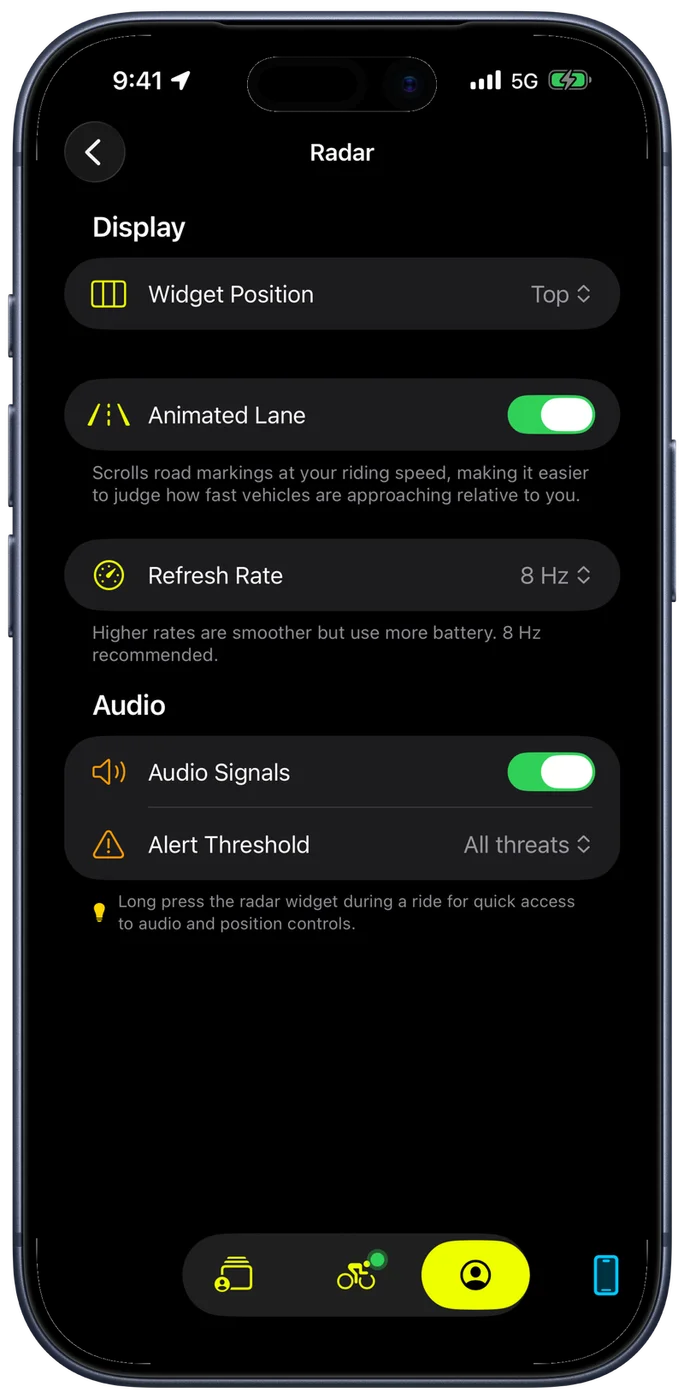
The Radar screen, under Configuration → Ride Settings → Ride Interface, sets how the radar widget appears and behaves on your ride screen: where it sits, how it animates, and when it makes a sound. The settings apply to every supported radar, except Animated Lane, which needs a radar with a 2D view.
Widget Position
The radar widget can sit at the Top of the ride screen, on the Leading side (the left edge) or on the Trailing side (the right edge). Choose the position that fits your layout and does not overlap the metrics you check most.
Most riders place the radar on the trailing edge so it sits alongside their speed and power data without competing for attention. If you use a minimal ride layout with fewer widgets, the top position gives the radar more vertical space to show vehicle distances.
Animated Lane
Animated Lane scrolls road markings down the radar widget at your own riding speed. That is what makes closing speed readable: a car drawn against markings moving at your speed shows you how much faster it is going than you, which a static lane cannot.
It works as a peripheral cue, so you can judge whether a vehicle is drifting up behind you or coming fast without reading a distance. Turn it off if you find the motion distracting or prefer a still display.
The lane markings only appear with radars that show a 2D view: the Garmin Varia RearVue RVR820 and Trek CarBack. With any other radar the widget shows vehicles on a single lane without road markings, so this setting has no visible effect.
Audio Signals
Audio Signals play a sound when the radar picks up an approaching vehicle. This is the radar's most safety-critical setting, because it tells you about a vehicle behind you before you see or hear it yourself. The volume comes from Alert Volume on the Audio & Alerts screen.
Audio alerts are especially valuable on roads without bike lanes, on descents where wind noise drowns out engine sounds, and anytime you are wearing headphones. The alert gives you time to hold your line, signal, or move over.
Alert Threshold
Alert Threshold decides which vehicles are worth a sound. There are three choices, and the distances are part of the names:
- All threats: every vehicle the radar sees, as early as it sees it.
- Medium (< 100m): nothing until a vehicle is inside 100 metres.
- High (< 30m): only vehicles that are genuinely close.
On quiet rural roads, All threats makes sense, because every approaching vehicle is worth knowing about. On busy urban roads where cars pass constantly, one of the tighter thresholds prevents alert fatigue. The widget keeps showing every vehicle whichever you pick: the threshold only governs the sound.
The threshold is greyed out while Audio Signals is off, since there is nothing for it to govern.
The Shortcut Mid-Ride
You do not have to leave the ride to change these. Press and hold the radar widget during a ride and the audio and position controls come up there and then, which is the way to silence the radar on a road where it is alerting constantly.
Related Guides
- Supported Radars: every radar Bike IQ pairs with and what each one reports
- Safety Features: radar, tire pressure alerts and the rest
- Bluetooth Sensor Pairing: connecting your radar and other sensors
- Settings and Customization: all configurable preferences in Bike IQ