Settings and Customization
Bike IQ adapts to how you ride. From unit preferences to bike profiles to map layers, every setting is designed to get out of your way and let you focus on the road.
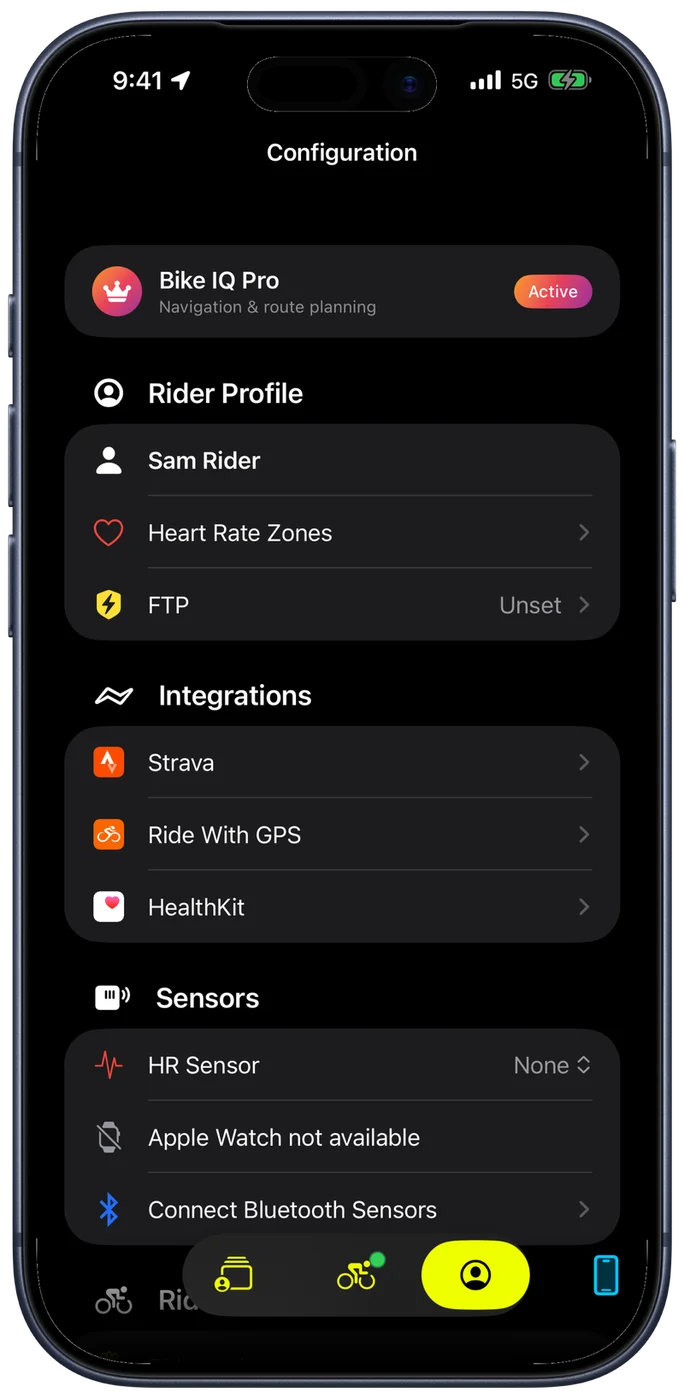
Rider Profile
Your rider profile holds First Name, Last Name, Birth Date, Gender and Weight. Weight is the one that changes your numbers: the virtual power meter uses it directly in its physics, so an accurate weight means accurate watts. Update it whenever your weight moves meaningfully.
FTP
FTP (Functional Threshold Power) drives your power zones and the intensity figures across the app. Enter it yourself, or turn on Auto detect FTP and let Bike IQ update it from your rides.
Auto detection has its own controls, because not every hard effort is a fair test:
- Detection Methods: 20-minute efforts and 8-minute efforts, each switchable on its own. Twenty-minute efforts are steadier and generally more trusted. Eight-minute efforts react faster but are less reliable and tend to read high.
- Scan Range: how far back to look, over the Last 3 Months, Last 6 Months, Last Year or All Time. A shorter range follows your current form; a longer one is harder to move.
- Excluded Efforts: any effort you have thrown out, listed with the FTP it would have produced. A hard group ride behind a wheel is the classic case. Tap Include to bring one back.
With auto detection on, the manual field is locked, so the two can never disagree.
Bike Profiles
Bike IQ supports multiple bike profiles. Each profile stores a name, category, bike weight, tire type, and handlebar position. These parameters feed into the aerodynamic and rolling resistance models that power your virtual power estimates.
Each bike also has its own sensor assignments, so your road bike can use one power meter while your gravel bike uses another. You configure the drivetrain (chainrings and cassette) for gear tracking and specify tire dimensions for accurate speed calculations.
Before starting a ride, select the bike you are riding. The app uses that profile's weight, tire, and aero settings for the entire session. See Getting Started for initial bike setup.
Units of Measure
System sets everything at once, metric or imperial. Under Individual Units you can then override any of six on its own: Temperature, Speed, Distance, Elevation, VAM and Weight. Kilometres for distance with Fahrenheit for temperature is a perfectly reasonable combination, and every screen follows whatever you set.
Switching the system resets the individual units, so set the system first and then override what you want.
Ride Interface
Super Dark Mode pushes the ride screen to maximum contrast for outdoor visibility, keeping the metrics and the map legible in direct sun. On an OLED iPhone it also saves power, which is covered in Battery Life.
Under Widgets, two of the always-on widgets have settings of their own: Radar for where the radar sits and when it sounds, and Gears for how your gear is shown, which is covered in Gear Detection.
Ride Settings
Smart Pages is the first row, where you build your own ride screens and set the conditions that bring one up by itself. It needs Bike IQ Pro.
Ride Assist handles the mechanics of a recording:
- Enable Auto-Pause pauses recording when you stop moving and resumes when you start again. Ideal for city riding with frequent traffic lights.
- Auto Lap starts a new lap every time you ride a set distance, from 1 km up to 20 km, or 1 to 10 miles.
- Wait for Movement holds the recording until you actually start riding, so a ride does not begin by accident.
- Enable Unpause Reminder alerts you if you are moving while the ride is still manually paused, then snoozes for five minutes.
- Auto-Switch Source moves speed, power or cadence to the next available source when the primary one stops sending.
For more on how these work during a ride, see Recording a Ride.
Map Display
The live map is your primary view while riding. What it draws is set under Map & Routes, in Map Display.
- Road Labels for street and road names on the map.
- Points of Interest for the amenities a rider looks for, with the categories you choose.
- Prefer English Names to read a road or place by its English name where the map carries one.
- Live Labels for two labels that follow you: Current Road and Current Town.
Climb behaviour lives beside it, under Climb Detection:
- Auto Switch to Climb Mode repositions the map to show the whole climb as you reach one, then returns to following you afterwards.
- Route Elevation Profile, under Navigation Settings, draws the route's terrain ahead of you and zooms into climbs as you approach them.
Heart Rate Zones
Bike IQ works in five heart rate zones, and both halves of that are yours to set under Configuration → Rider Profile → Heart Rate Zones.
Maximum Heart Rate is a slider from 120 to 200 bpm. Bike IQ does not guess it from your age, because the age formulas are wide of the mark for a lot of riders. If you know your real figure from a lab test or a hard field effort, enter that. Otherwise the highest number you have genuinely seen on a climb is a better starting point than any formula.
Under Zones, each boundary is its own slider, so you can shape the zones around your own physiology rather than accept a split. The defaults are:
| Zone | Share of max HR | What it is for |
|---|---|---|
| Zone 1, Recovery | below 70% | easy spinning, warmup and cooldown, where your body clears rather than accumulates |
| Zone 2, Endurance | 70 to 80% | base training and long rides, holdable for hours while still able to talk. Most of your volume belongs here |
| Zone 3, Tempo | 80 to 87% | sustained moderate effort where conversation gets hard. Useful, and easy to spend too much time in |
| Zone 4, Threshold | 87 to 94% | interval and time trial effort, holdable for 20 to 60 minutes. This is where threshold moves |
| Zone 5, Vo2 Max | 94% and above | short maximal bursts: sprints, hill attacks, hard intervals |
Zones have to stay at least 3% apart and Zone 1 cannot start below 50%, so a drag can never produce a set of zones that overlap. Reset puts all four boundaries back to the defaults above.
These zones are what the ride report breaks your time down into afterwards.
Audio Settings
Control the sounds Bike IQ makes during your ride:
- Alert Volume sets how loud Bike IQ's own sounds play, separately from your phone volume. It covers the rear-vehicle radar alert too, and previews when you release the slider.
- Ride State toggles the sounds for ride start, resume, auto-resume, pause, auto-pause and finish, each on its own.
- Bike Bell has its own screen for the sound, ring count and palm gesture.
- Audio Signals under Radar turns the approaching-vehicle sound on or off, with its own alert threshold.
Navigation Voice
When following a route, Bike IQ provides turn-by-turn voice guidance. You can choose from multiple voice options in settings. Pick the one that is easiest to hear over wind and traffic. For route planning and navigation details, see Navigation and Routes.
Live Activity
Live Activity shows key ride metrics on your iPhone lock screen and Dynamic Island without unlocking your phone. During a ride, you can glance at your current speed, distance traveled, and elapsed time directly from the lock screen or the Dynamic Island pill at the top of the display.
This is particularly useful when your phone is mounted on the handlebars and the screen auto-locks to save battery. Rather than tapping to wake the screen, your ride data stays visible at all times. The metrics update in real time, so you always see current values without any interaction.
To enable Live Activity, go to Configuration → Ride Settings → Ride Assist and turn on Enable Live Activity. Lock screen widgets work on every iPhone Bike IQ runs on. If you have an iPhone 14 Pro or later, you also get the Dynamic Island integration, which keeps a compact summary of your ride visible even when using other apps.
Live Activity has minimal additional battery impact. The lock screen and Dynamic Island are already rendering content, so showing ride metrics instead of the default clock or status bar adds negligible power draw. You should not notice a meaningful difference in battery life with the feature enabled.
Sensor Management
Bluetooth sensors are assigned either per-bike or globally. Bike-specific sensors like power meters and speed sensors attach to a bike profile. Rider sensors like heart rate monitors apply across all bikes.
For heart rate, you choose between three sources: no heart rate, a Bluetooth heart rate monitor, or Apple Watch. Each option works differently and has its own tradeoffs. See Heart Rate Sensors for a full comparison.
For step-by-step pairing instructions, see Bluetooth Sensor Pairing.
Related Guides
- Getting Started: initial setup, permissions, and first ride
- Bluetooth Sensor Pairing: connecting power meters, cadence sensors, radar, and more
- Heart Rate Sensors: Apple Watch vs Bluetooth heart rate monitors
- Virtual Power Meter: how weight and bike settings affect power accuracy
- Recording a Ride: using auto-pause, voice control, and the ride screen