Map Display and Color Coding
The map is central to the Bike IQ experience, both during rides and in post-ride analysis. This guide covers route color coding, available map layers, and the controls for navigating the map.
Road Safety Colors
Bike IQ colors roads on the map based on their cycling safety classification. This helps you identify bike-friendly routes at a glance, whether you are planning a ride or navigating in real time.
| Road Type | Color | What It Means |
|---|---|---|
| Bike path | Teal | Roads tagged as cycleway: dedicated cycling infrastructure, separated from motor traffic |
| Residential | Grey-blue | Secondary, tertiary, residential and service roads, and also streets, tracks, paths, footways and pedestrian ways: lower traffic, and mostly where a ride actually happens |
| Busy road | Warm tan | Primary roads. Rideable, but worth more caution and worth routing around when there is a quieter parallel |
| Highway | Red | Motorways and trunk roads, typically neither legal nor safe to ride |
| Gravel | Olive | Any unpaved surface: gravel, dirt, compacted and the rest |
Road classification is derived from OpenStreetMap data, and surface wins over class. Any edge tagged unpaved, gravel, dirt or compacted reads as gravel whatever it is classified as, because a cycleway with a compacted surface is still gravel to the rider. Then the road's highway classification determines whether it is a bike path, residential, busy, or motorway.
These colors appear during live rides and in the route builder elevation profile, giving you consistent safety context across the app.
Live Map During a Ride
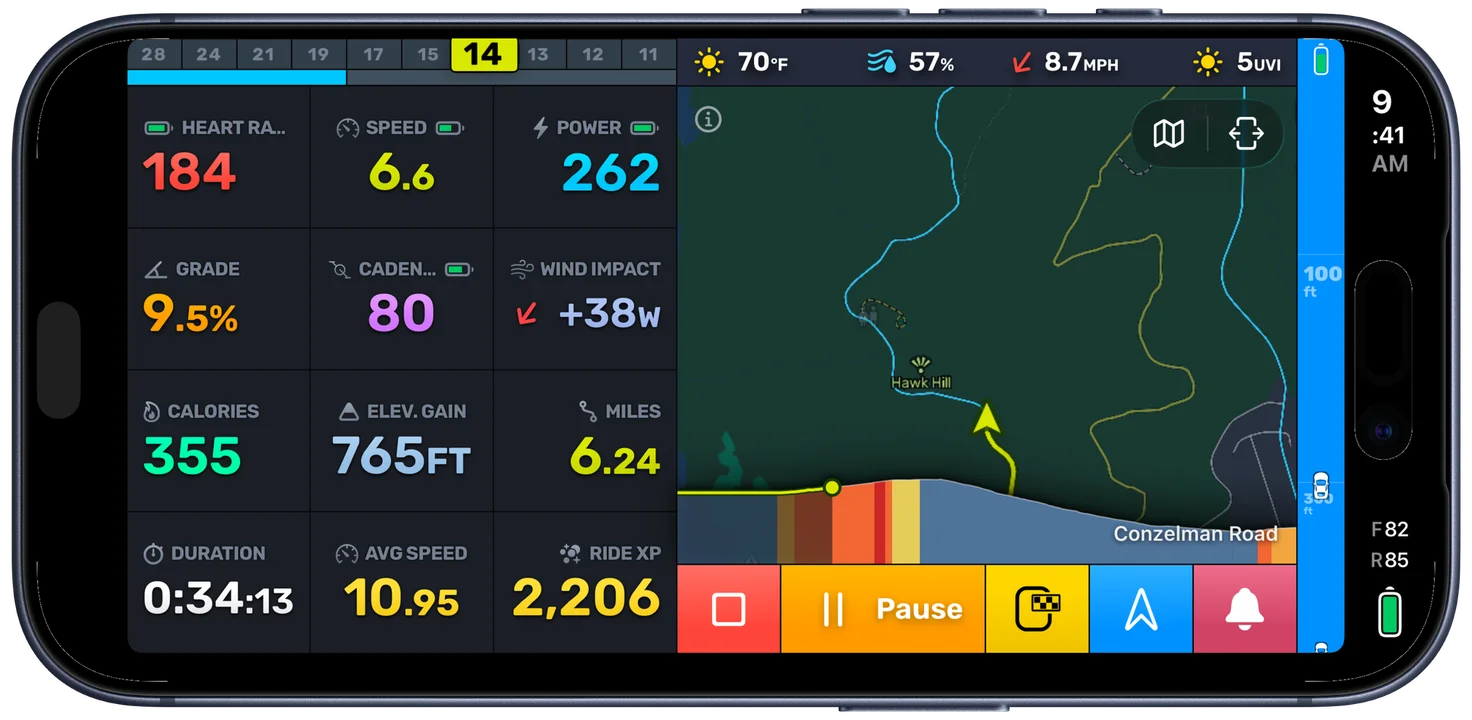
While recording a ride, the map shows your current position with real-time tracking. If you are following a route with turn-by-turn navigation, the planned route polyline is displayed ahead of you. Your completed track trails behind as you ride, giving you a continuous view of where you have been.
The map automatically adjusts as you move, keeping your position centered. You can pan and zoom freely to explore the surroundings, then tap the recenter button to snap back to your current location.
Route Color Coding (Post-Ride)
In the ride report, the route polyline can be colored by different metrics. This turns the map into a spatial analysis tool. Instead of reading numbers on a chart, you see how your effort varied across the geography of the ride. The available metrics and their color scales are:
Speed
Blue at the low end, red at the high end, across a range of 0 to 15 m/s. Flat, fast sections glow red while slow climbs and stops shade blue. Useful for identifying where terrain or conditions limited your pace.
Power
Colored by FTP-based power zones. Zone 1 (active recovery) appears in blue, progressing through green, yellow, and orange up to Zone 5 (maximal effort) in red. Requires power data from a Bluetooth power meter or the virtual power meter.
Heart Rate
Colored by heart rate zones, following the same blue-to-red progression. Zone 1 (recovery) is blue, Zone 5 (VO2max) is red. Requires heart rate data from an Apple Watch or a paired heart rate monitor.
Cadence
Red at low RPM (grinding), transitioning to blue at high RPM (spinning), across a range of 0 to 120 RPM. The inverted color scale highlights low-cadence grinding in a warm, attention-drawing color. Requires a cadence sensor.
Elevation
Green at low altitude, transitioning to red at high altitude. Shows the altitude landscape of your ride at a glance. Useful on hilly routes where relative altitude varies significantly.
Grade
Blue for descents (down to -10%), neutral for flat terrain, and red for steep climbs (up to +15%). Highlights where the road tilted and how steeply. Grade is measured from the iPhone's barometer.
Gear Ratio
Blue for easy gearing (around 1.0x ratio) to red for hard gearing (up to 4.0x ratio). Shows your gearing choices spatially, so you can see where you shifted to easier or harder combinations. Requires a SRAM AXS or Shimano Di2 electronic groupset.
Wind Impact
Green where tailwind reduced your effort (down to -50W of benefit) and red where headwind added resistance (up to +100W of penalty). This makes it visually obvious which sections of the route were helped or hindered by wind conditions.
Map Layers
What the map draws is set under Map & Routes, in Map Display:
- Road Labels: street and road names along the roads.
- Points of Interest: the amenities a rider actually looks for, with the categories you pick.
- Prefer English Names: shows the English name of a road or place where the map carries one, leaving anything without one in its own script.
- Live Labels: Current Road at the bottom right and Current Town at the top left, both following where you are.
Turning off points of interest gives the cleanest map for a route you already know. Leaving them on is what turns the map into something you can find water or a bike shop from.
Map Controls During a Ride
While riding, the map responds to standard touch gestures. Pinch to zoom in and out. Pan with one finger to explore the area around you. When you are ready to return focus to your position, tap the camera mode button to snap back.
Camera Modes
The camera mode button in the top-right corner of the map cycles through available views. The modes change depending on your current ride state:
- Following: The default mode. The map tracks your position with your direction of travel pointing up. Zoom level adjusts to your speed: slower riding zooms in for detail, faster riding zooms out for context.
- Climb: Available when Bike IQ detects a climb ahead or when you are on a climb. The map zooms out to show the full remaining climb, oriented with your bearing pointing up. The elevation profile overlay appears at the bottom showing gradient, remaining distance, and your progress. This mode activates automatically when a qualifying climb is detected (configurable in Map Settings).
- Overview: Available when following a route. Zooms out to show your entire remaining route at once, giving you a birds-eye view of what lies ahead.
Tap the camera button to cycle through the available modes. If you manually pan or zoom the map, the camera enters an idle state. Tap the camera button once to return to the active mode.
Elevation Profile Overlay
When in Climb Mode or during navigation, an elevation profile overlay appears at the bottom of the map. It shows the remaining terrain ahead: climbs, descents, and your current position within the profile. The overlay includes remaining elevation gain, distance, and average grade, giving you the information you need to pace a climb or plan for what is coming next.
The elevation of the road ahead appears continuously, not just when a climb is detected, and on free rides with no route set Bike IQ anticipates the road you are most likely to take and shows the terrain along it. See The Road Ahead for how the preview works with or without a planned route.
Related Guides
- Ride Report: the full post-ride analysis, including the color-coded route map
- Settings and Customization: configure map layers and display preferences
- Navigation and Routes: turn-by-turn directions and route planning