Bike IQ 1.4.1: Every Ride Tells Its Story
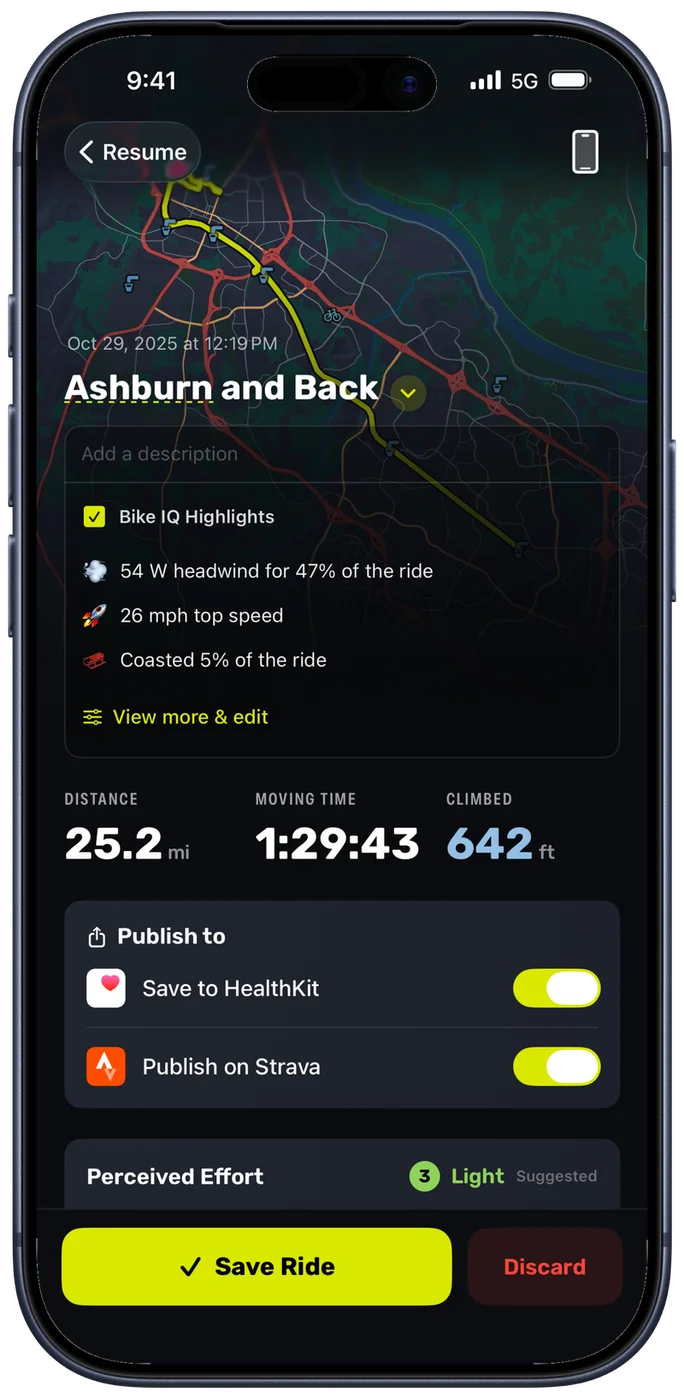
Until now a ride was called "Saturday Morning Ride". In 1.4.1 it is called "Ashburn and Back", and under it Bike IQ lists the few things worth remembering about it: the climb, what the wind cost you, a new best. That is the headline. Around it, the ride map zooms with one tap, the Ride Report lets you select any stretch of a ride, the radar warns you before every car, and your heart rate zones set themselves.
Ride titles
A finished ride is named after where it went: "Purcellville and Back", "Loop to Lovettsville", "Mount Tamalpais Climb", "Ashburn in the Rain". The button beside the title offers the other titles that fit, the town in the title has a menu of its own, and Type Your Own writes anything you like. A title you typed is never replaced. A ride Bike IQ cannot place keeps the day and time name.
Bike IQ Highlights
Under your own description, Bike IQ Highlights lists what Bike IQ found on the ride, one short line each: the climb and its height, what the wind cost or gave you, a top speed, a power best, gravel, rain, a route record, how many cars passed you with a radar, your gears with an electronic groupset, tire pressure, an e-bike's battery. A best is a best against your own rides, so a record means something.
View more & edit lets you remove a line, correct one, or add the rest of the facts from the ride, and a checkbox decides whether they are shared. On Strava they follow your own words under a "Bike IQ Highlights:" heading. The Ride Report shows them too, and you can now edit the title, description, highlights and effort right there. Older rides get their highlights the first time you open their report.
If you would rather not have them, Settings, Ride, Ride Highlights turns them off, sets how many are suggested (1 to 5), and sets each kind to Auto, Always or Never. Bike IQ also learns which kinds you keep adding or removing. The full guide is in Finishing a Ride.
A ride map that zooms
The ride map has a zoom button, the magnifying glass at the top right. Each tap steps between Close, Normal and Far, the map keeps following you at every level, and it remembers your choice for the next ride. A two-finger pinch now zooms while the map keeps following you; only a one-finger drag lets go.
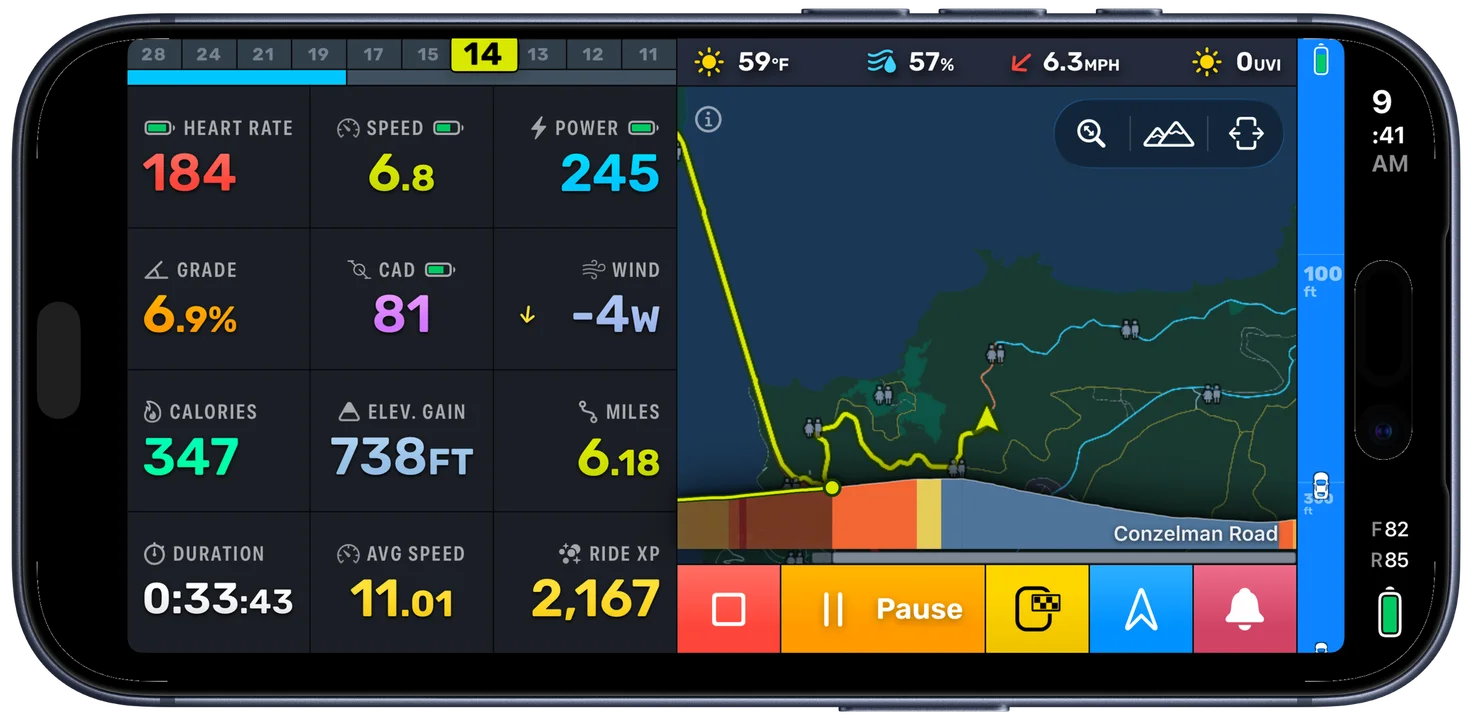
You can cycle the zoom from a SRAM AXS or Shimano Di2 button (Cycle Map Zoom, Pro) or with Siri and the Action button ("Cycle map zoom in Bike IQ"). In Settings, Map & Navigation, Map Display, the new Ride Map section sets the starting zoom and a flat or tilted view, now on free rides too. See Map Zoom.
Ride Report: zoom in, select a stretch
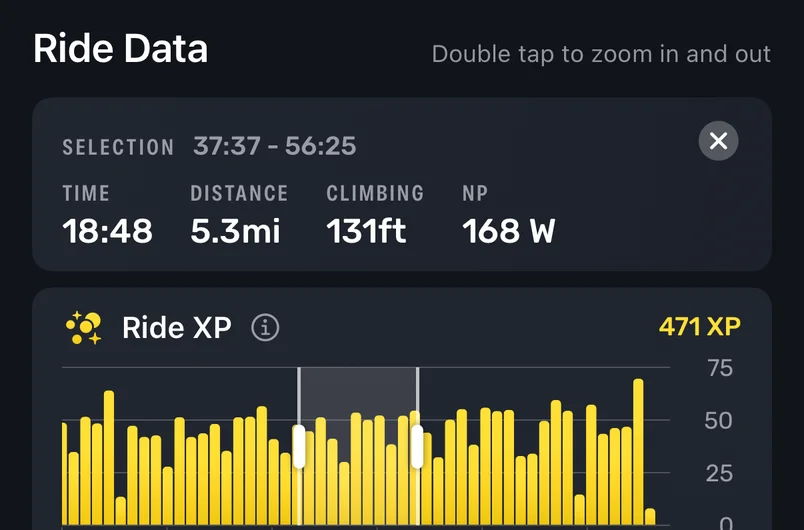
Double tap or pinch any Ride Report chart to zoom in, then swipe through the ride second by second. To ask "what did I average up that climb", double tap and keep your finger down on the second tap, then drag across the chart. The stretch shows as a band on every chart, the averages and maximums in the chart headers switch to it, the map highlights it, and a Selection strip shows its time, distance, climbing and normalized power. Drag either handle to adjust it.
- Full screen map. A round button under the Route Color menu grows the report's map to full screen, with your route coloring and selection carried over.
- Elevation colored by grade. The profile under the map wears the same climb colors as the ride screen, so the steep part stands out the moment you open a report. Rides from before late April 2025, which had no profile at all, now get one.
- CSV export joins GPX, FIT and TCX: every second of the ride in a spreadsheet.
The full guide is in Ride Report.
New tiles and pages
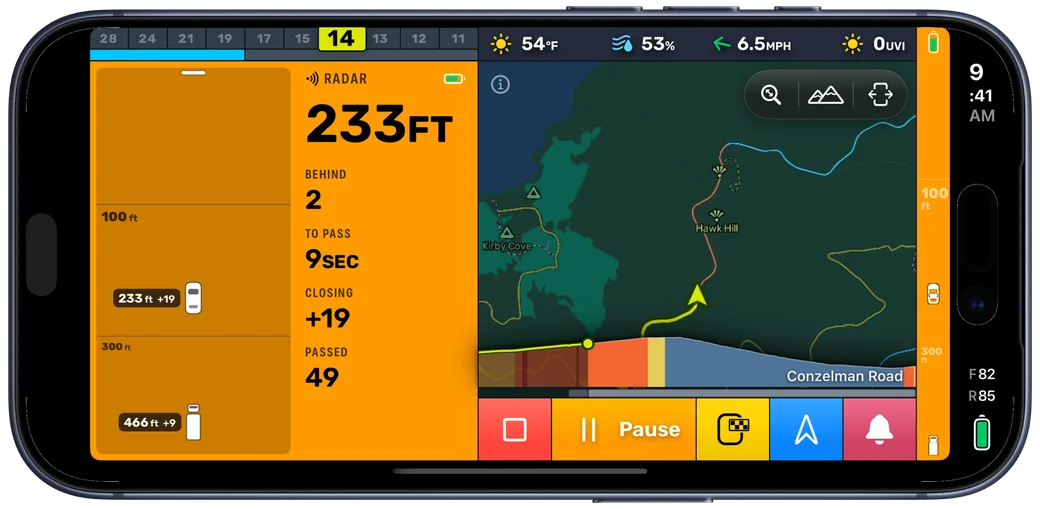
The Radar tile draws your lane with the cars on it, the way the radar strip does, and fits itself to any tile size. The Busy Road page is now that tile alone, filling the page: the lane down one half, and the nearest car, how many are behind, the seconds until it passes and how many have gone by down the other. If you never edited your Busy Road page, it moves to the new one by itself.
Elevation Ahead draws the next 1, 2 or 5 km (or miles) of road as a profile colored by grade, with how much it climbs in big numbers. It follows the road Bike IQ expects you to take, so it works on a planned route and on a free ride alike.
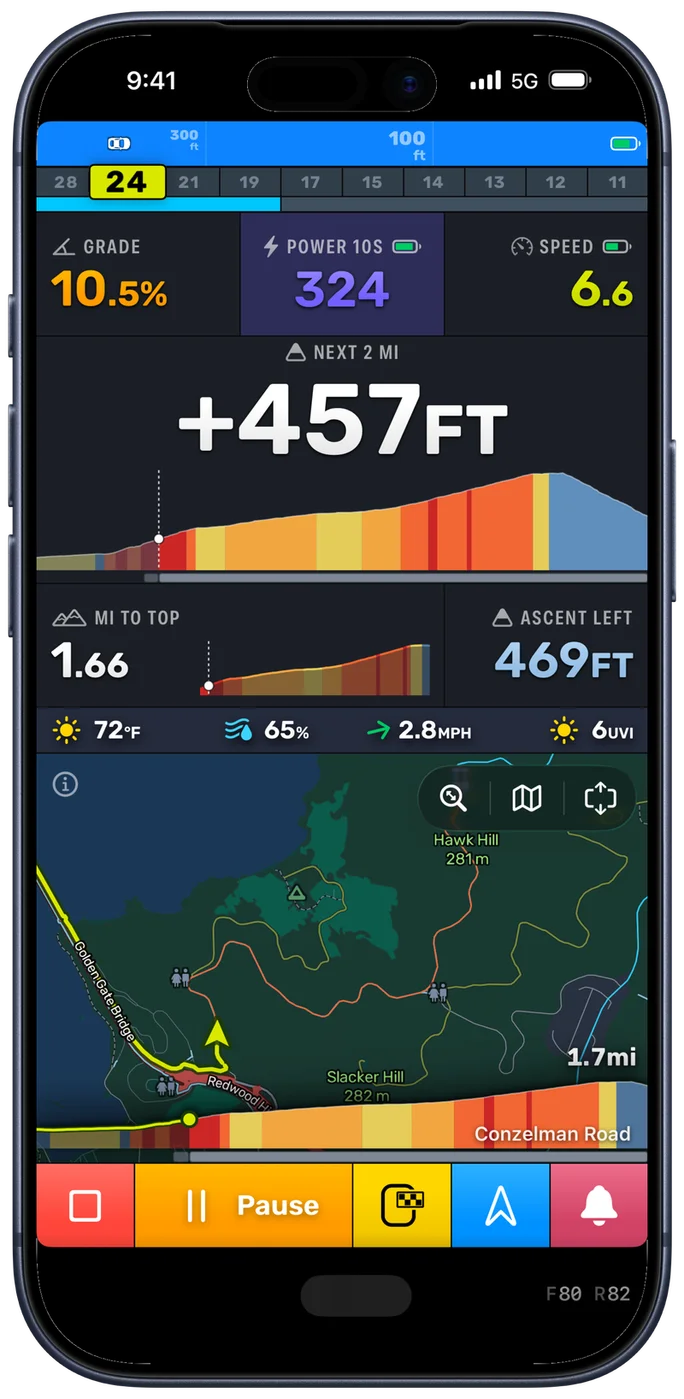
Rain Ahead looks about an hour up the road at your speed and tells you when you will meet rain and how hard it will be: "Rain In" with a countdown, or "Raining", "Rain Stops In" and "No Rain For". A taller tile also shows how far up the road it starts.
The new Pre-Ride page comes up on its own from the moment you open the ride screen until you tap Start, with the forecast for the next 5 hours over your distance and climbing so far this week. Every rider gets it once, as a new Auto Page. See The Pre-Ride Page.
- What does this tile mean? Every row in the metric list has an info button that shows the tile with a sample value and a sentence on what it measures.
- Wind in color. Wind Impact and Headwind turn orange when the wind is against you and green when it is behind you, so +20 W and -20 W no longer look the same at a glance.
Building and previewing pages is free; showing them on a ride is Pro. Without Pro, swipe left on the ride screen while you are stopped to see a Pro page running, with a way to start building your own. See Smart Pages.
Bike paths and gravel, before you get there
The road type bar under a route's elevation chart was redrawn. It sits inside the chart, so it zooms with the elevation, and it now shows bike paths in teal (a rail trail used to read as a residential street) and gravel striped, in the right place: on some routes a gravel sector used to be drawn early or left out. The info button beside the chart opens a Chart Key that explains every color.
The same bar now follows you on the ride screen while you navigate, under the map's elevation strip, with the part already ridden faded. With Pro it shows on free rides too, along the road Bike IQ expects you to take. See Route Builder.
Radar: a warning for every car
The radar now has three sounds, each with its own switch and a preview button: Vehicle Approaching, About to Pass and Road Clear. About to Pass is timed for each car from how far back it is and how fast it is closing, so it plays about 3 seconds before every car reaches you, including each car in a stream of traffic. Before, it played when the nearest car came within 30 metres, which was too early for a slow car and went quiet in steady traffic.
Sound & Voice now has a volume slider each for the radar, the ride sounds and the navigation voice. And with Pro, a SRAM AXS or Shimano Di2 button can mute the radar: "Radar Alerts Muted" shows on the map and the voice says it, so you know which way it went without looking. See Sound & Voice.
Heart rate
Your zones now set themselves. With the new Automatic switch, on by default, Bike IQ takes your max heart rate as the highest you held for 10 seconds on any ride in the last 12 months, never below the usual max for your age, and sets your five zones from it. One ride far above all your others is left out, since a slipping strap can read high. Turn Automatic off to set your own, now up to 230 bpm. If you had already set your max or zones, you keep exactly what you set.
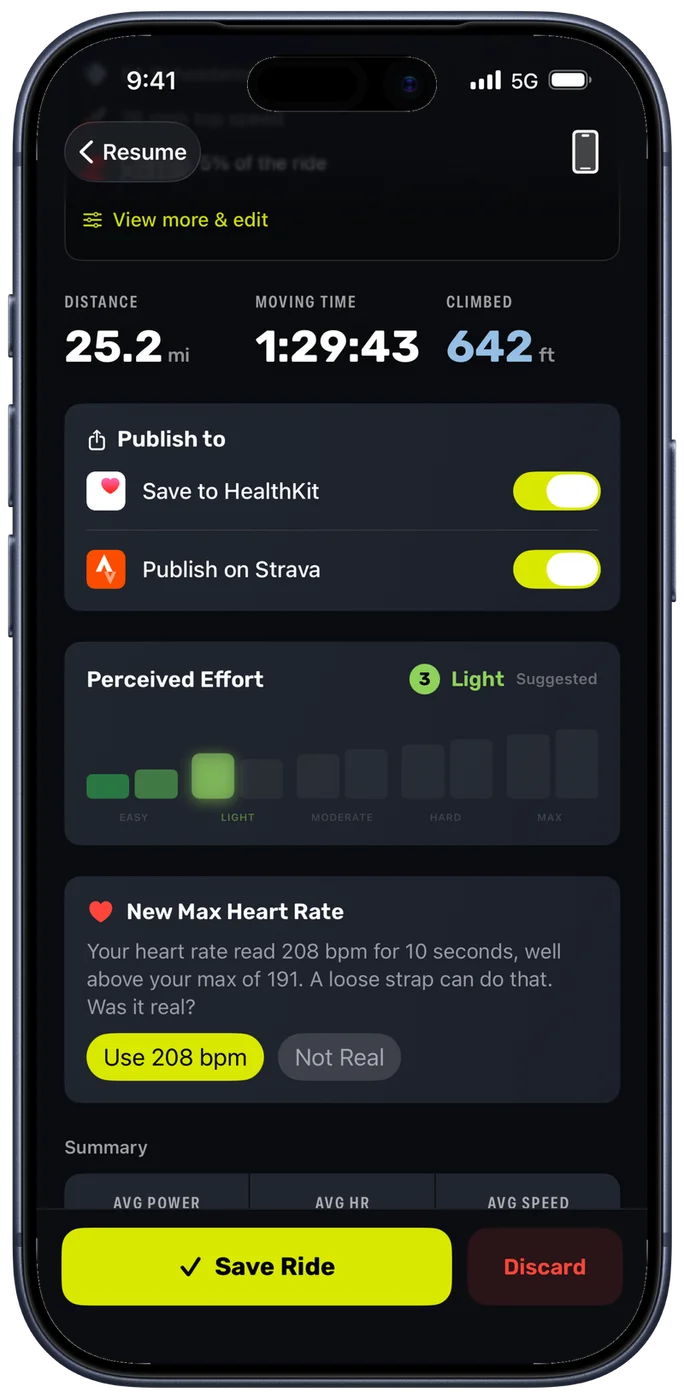
After a ride above your max, Ride Complete shows a New Max Heart Rate card. With Automatic on, your zones have already moved up. With your own zones, one tap updates them. See Heart Rate Zones.
Choose where your heart rate comes from. The new Heart Rate page, under Settings, Sensors & Devices, lists your straps, your Apple Watch and, on iOS 26 or later, AirPods Pro 3 and Powerbeats Pro 2 (in beta). Drag them into the order you want: during a ride Bike IQ uses the highest one that is sending, and moves to the next the moment it stops. See Choosing Your Heart Rate Source.
E-bikes
Bike IQ now reads Specialized Turbo bikes (Levo, Kenevo, Vado, Como and Creo) and BESV e-bikes, alongside TQ. You get your own power, cadence and speed, the battery and the assist mode by its own names, and on a Specialized the motor's power too. Bikes from 2022 on are locked to the owner's Specialized account, so the first connection asks you to sign in to Specialized once. See Pairing Sensors.
An e-bike ride exported as FIT or CSV now carries the motor's power and the assist mode every second, in fields of their own. Your own power is unchanged, so your FTP and power curves on other platforms still see only your effort.
Settings, rebuilt and searchable
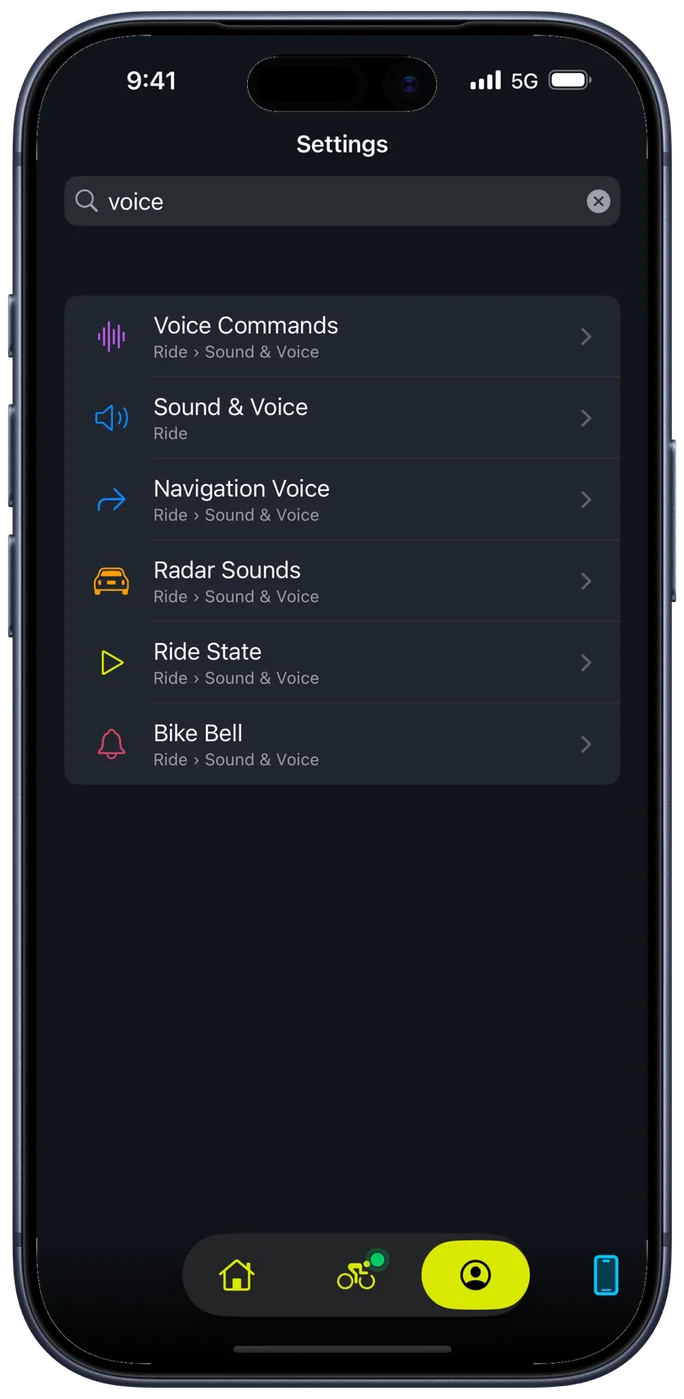
The Configure tab is now Settings, and every setting has one home, grouped by what it is for: Rider Profile, Ride, Map & Navigation, Sensors & Devices, Connected Apps, Data and Support. A few screens have clearer names: Ride Interface is now Display, Audio & Alerts is Sound & Voice, and Ride Assist is Recording. The search field at the top finds any setting by its name or by the words you would use for it, and takes you there.
Fixes and reliability
- A ride picks back up on its own if iOS closes Bike IQ mid-ride. The app comes back in the background and keeps recording, without a tap. See If Bike IQ Closes Mid-Ride.
- Strava uploads that fail are tried again on their own, the next time you open the app or get back online.
- Climbing totals are more accurate.
- Saving a route for offline now ends in Saved or Not saved. If something is missing, the sheet says how much downloaded and why, and Try Again fetches only the rest. See Managing Routes.
- Apple Watch: the Bike IQ app no longer keeps coming back on every wrist raise after a ride.
- Ride Complete has its portrait / landscape toggle back, so you can turn the phone to type a title.
- The Ride Report no longer stops scrolling after a quick tap on a chart.
Getting it
1.4.1 is on the App Store now. Ride titles, Highlights, map zoom, the Ride Report, the radar sounds and automatic zones are free. Showing your pages on a ride, shifter button actions and the road type bar on free rides are part of Bike IQ Pro.